
Deploying an IAST agent on Azure App Service
Use the IAST agent to monitor applications that run on Azure App Service.
Deploying a .NET Core IAST agent using the HCL AppScan IAST .NET Core site extension
About this task
Procedure
-
Adding the HCL AppScan IAST .NET Core Site Extension:
-
Select IAST .NET Core Site Extension for Azure App
Service.
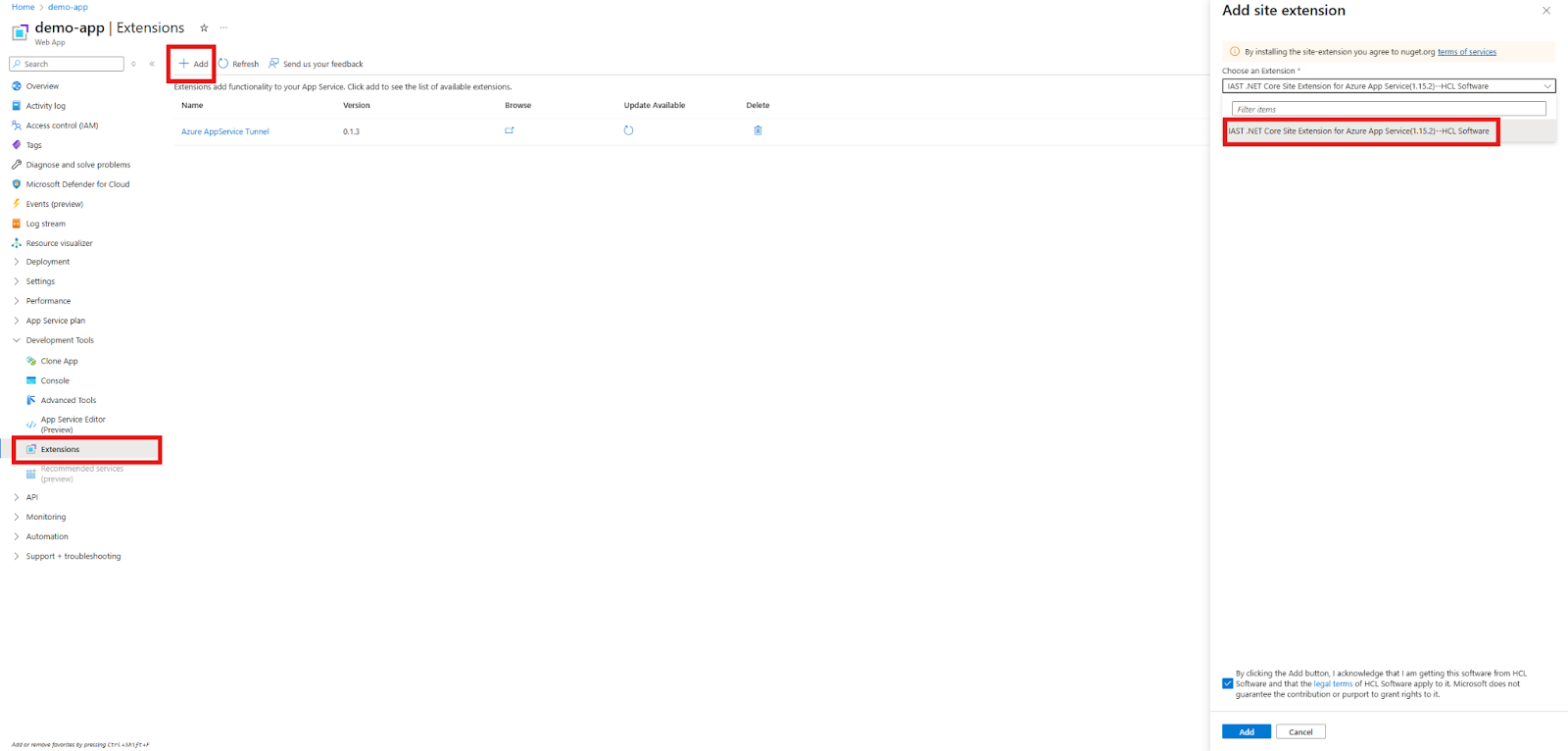
-
Select IAST .NET Core Site Extension for Azure App
Service.
-
Configuring the site extension:
-
Click Add, and then add the following environment
variables:
Name Example Description IAST_ACCESS_TOKEN(your access token) Authenticates the agent with ASoC. IAST_HOSThttps://cloud.appscan.com/IAST The ASoC host URL that the agent connects to. 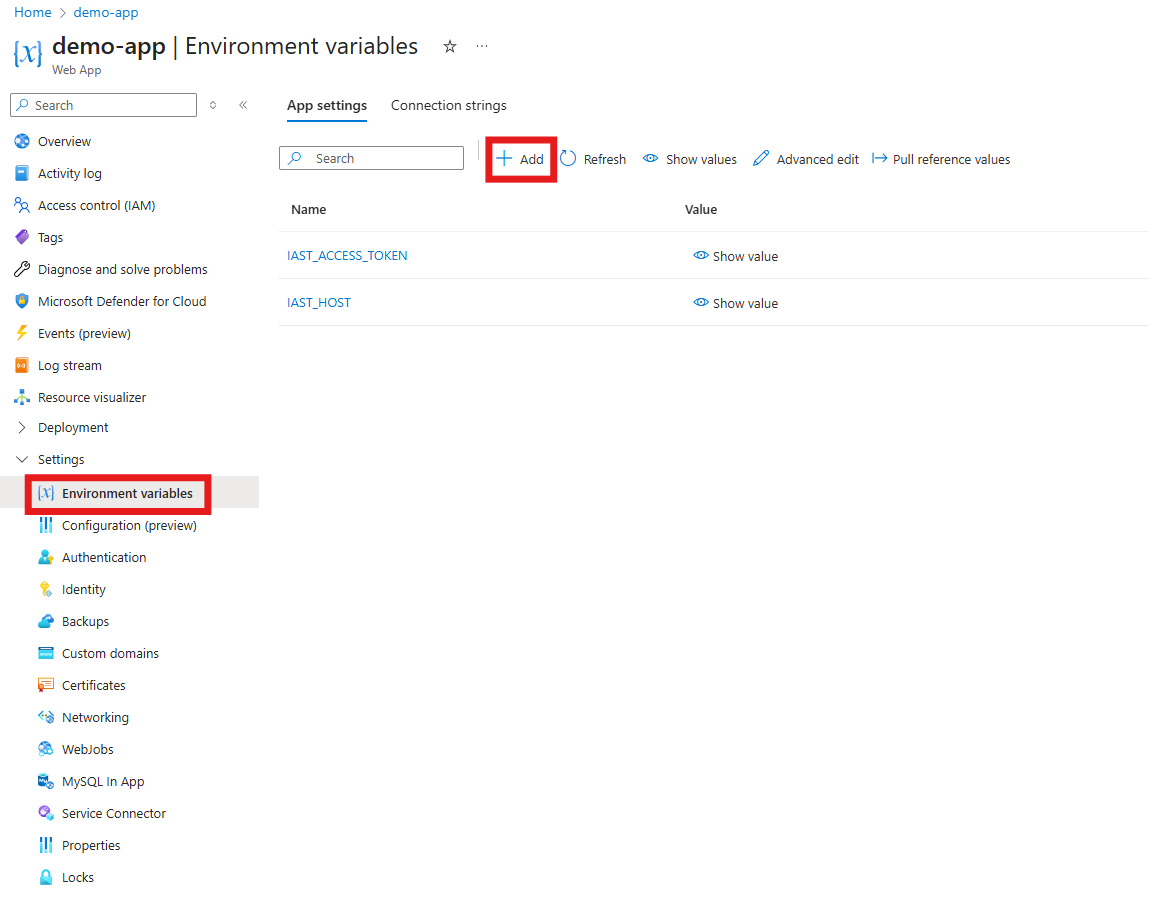
-
Click Add, and then add the following environment
variables:
-
Verification: After the restart, the agent starts automatically.
-
In Azure: Check the log stream for IAST agent startup and connection
messages.
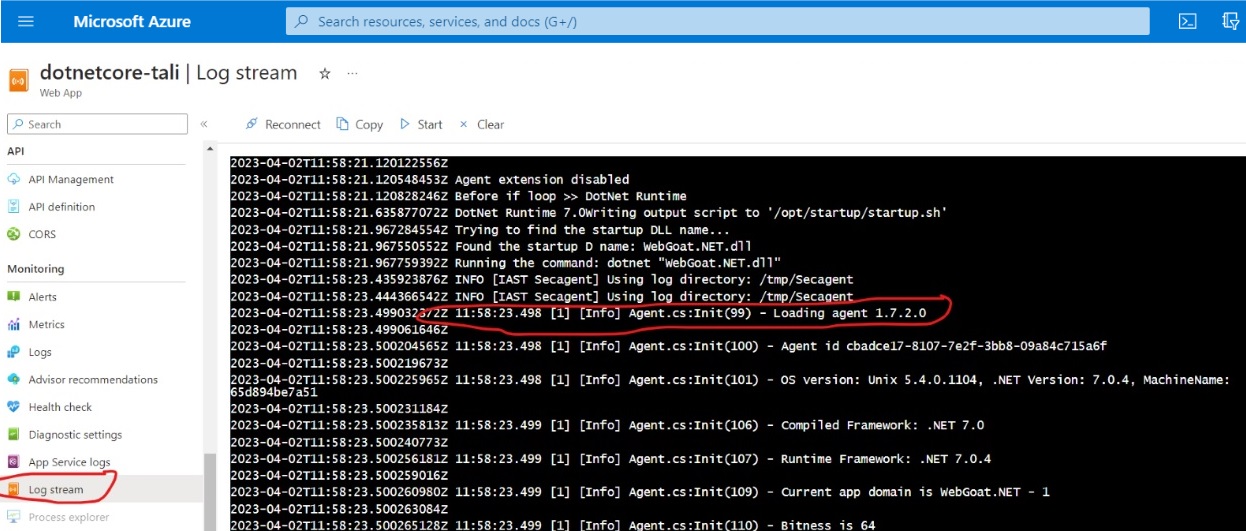
-
In Azure: Check the log stream for IAST agent startup and connection
messages.
Deploying a .NET IAST agent on Azure
About this task
Procedure
-
Verification: The agent is now installed.
In ASoC: Open your application and confirm an active IAST connection.
In Azure: Check the log stream for IAST agent startup and connection messages.
As you use or test your application (run functional tests, run a DAST scan, or explore the application manually), the IAST agent monitors requests as they are sent, and reports on security issues it finds.
Deploying a Node.js IAST agent on Azure
Procedure
-
Select Node.js and click Generate key. This generates a unique key that
connects your application with the IAST session in ASoC. Save
this key for later.
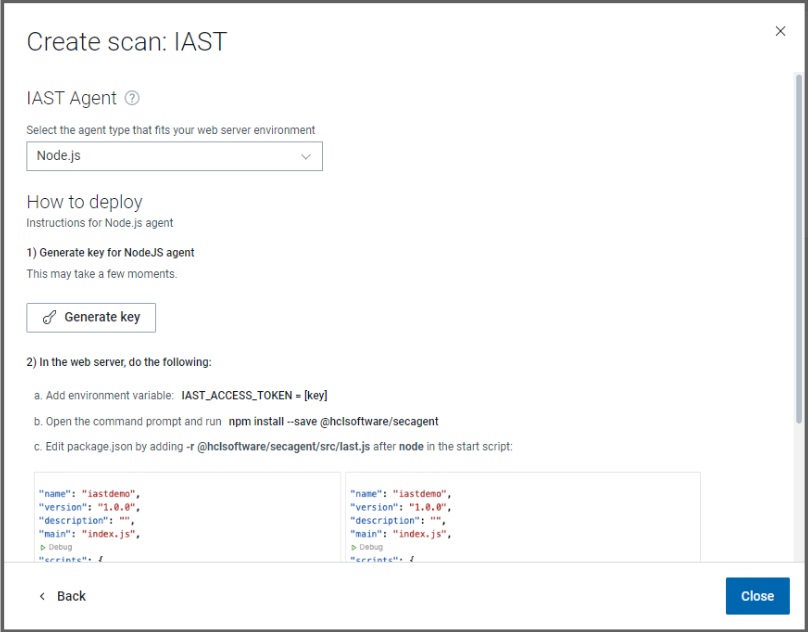
-
In your workspace, install the IAST agent from npm with the command:
This addsnpm install --save @hclsoftware/secagent@hclsoftware/secagentto the dependencies in thepackage.jsonfile of your application: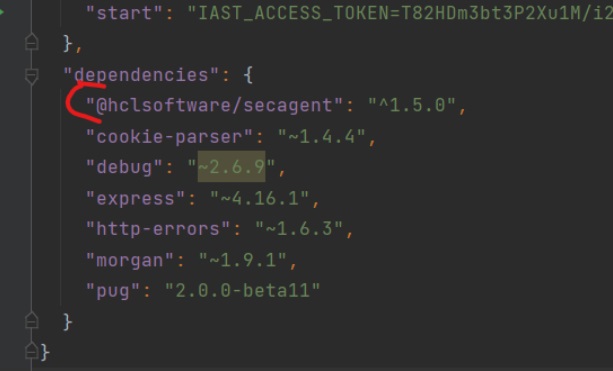
-
By default, Azure App Services use the start script in your
package.jsonas the run command. Edit the start script to set the agent key from step three above as an environment variable and to run the IAST agent from step four as a required package.For example, if the original command was:
Edit it to this:
-
Add the following environment variables, using the value saved in step #3:
Name Example Description IAST_ACCESS_TOKEN(your access token) Authenticates the agent with ASoC. IAST_HOSThttps://cloud.appscan.com/IAST https://<360_service_URL>/IASTThe ASoC host URL that the agent connects to. 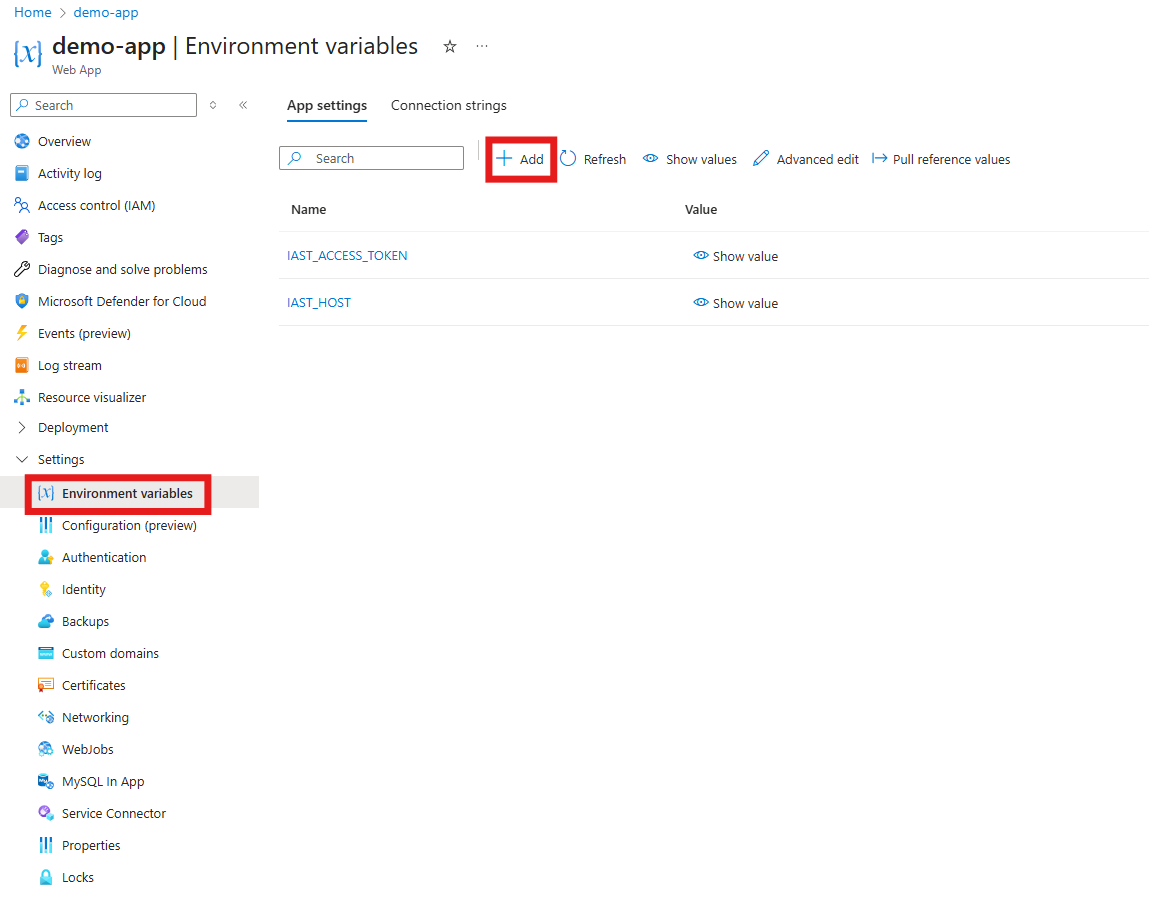
-
Verification: After the restart, the agent starts automatically.
- In ASoC: Open your application and confirm an active IAST connection.
- In Azure: Check Log stream for IAST agent startup and connection messages.
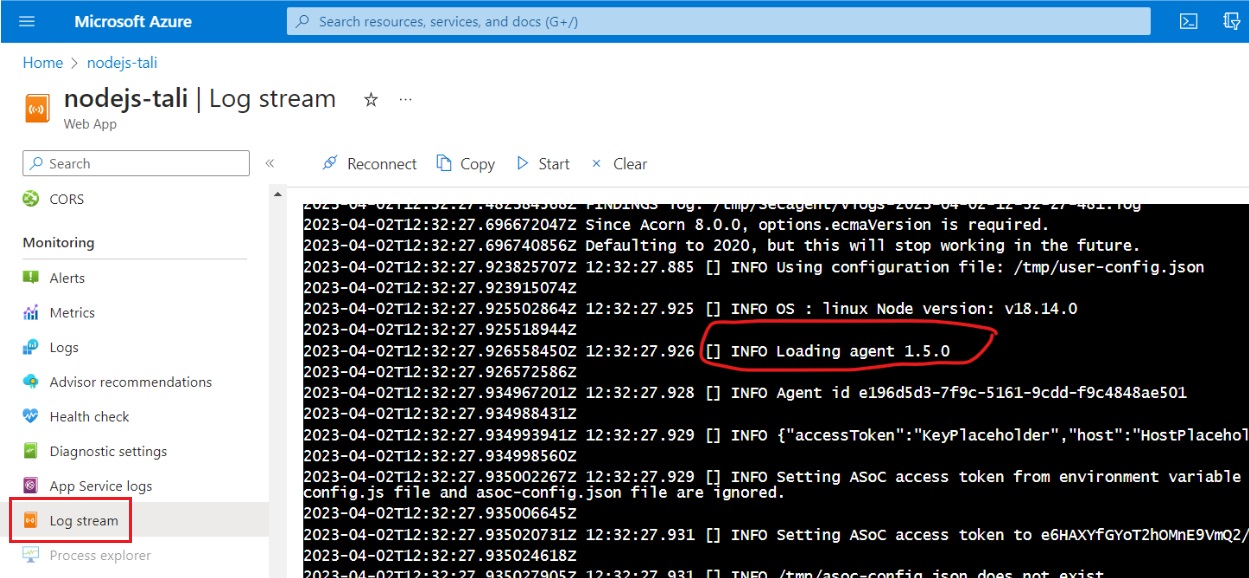
As you use or test your application (run functional tests, run a DAST scan, or explore the application manually), the IAST agent monitors requests as they are sent, and reports on security issues it finds.
Troubleshooting instructions
If an application deployment succeeds but the application does not start, returns unexpected errors, or does not behave as expected, collect the logs from the Azure App Service instance by using Kudu.
- Open Kudu.
-
In Azure App Service, select Advanced Tools from the left navigation menu.
-
Click Go.
-
- Open the file browser.
-
In Kudu, select Debug Console.
-
Choose one of the following options:
- CMD (Windows App Service)
- PowerShell (Windows App Service)
- Bash (Linux App Service)
-
- Locate the log files.
-
Windows App Service: Navigate to D:\home\LogFiles.
Common log locations include:
- D:\home\LogFiles\Application
- D:\home\LogFiles\EventLog.xml
- D:\home\LogFiles\DetailedErrors
- D:\home\LogFiles\http
-
Linux App Service: Navigate to /home/LogFiles.
Common log locations include:
- /home/LogFiles/application
- /home/LogFiles/default_docker.log
- /home/LogFiles/kudu
-