
Configure an open source scan in AppScan on Cloud
Procedure
-
Identify what you will scan:
- Identify a GitHub, GitLab, or Bitbucket repository to scan, and verify
that you have appropriate access to it. AppScan on Cloud requires
read access to repositories to perform security scans on them. AppScan on Cloud supports scanning one repository per scan.
To scan a private repository, install the AppScan on Cloud GitHub application on the GitHub account or organization that owns the repository to scan. See Installing a GitHub App from a third party.
To scan a GitHub Enterprise repository, or a GitLab repository (either self-managed or cloud-based), you must configure an AppScan Presence. See Setting up an AppScan Presence to scan a GitHub repository or Setting up an AppScan Presence to scan a GitLab repository.
- An IRX file:
- To generate an IRX file using the CLI, follow the instructions in Generating an IRX file by using the command line interface (CLI). You can scan supported file types from the CLI.
- To generate an IRX file using AppScan Go!, follow the instructions in Configuring a scan using AppScan Go!.
- Source code files compressed into a ZIP file.
The ZIP file can contain supported source/binary files as noted in System requirements for SCA.
- Identify a GitHub, GitLab, or Bitbucket repository to scan, and verify
that you have appropriate access to it. AppScan on Cloud requires
read access to repositories to perform security scans on them. AppScan on Cloud supports scanning one repository per scan.
-
If you will be scanning an IRX file, download and set up either:
- A supported plugin.
Complete information about supported plugins is listed on the AppScan on Cloud Plugins & APIs page and the Integrations documentation page.
- AppScan Go!, the client utility graphical user interface.
- The Static Analyzer Command Line Utility, as described in Setting up the Static Analyzer Command Line Utility.
- A supported plugin.
-
Scan or generate an IRX file for
your application, or identify source code files to scan.
-
To generate an IRX file by
using the CLI, follow the instructions in Generating an IRX file by using the command line interface (CLI). You can scan all supported languages from the
CLI.
Note:To scan open source only, use the
-osocommand withappscan prepare. - To scan in IntelliJ IDEA or Visual Studio, follow the instructions in Scanning in integrated development environments. In IntelliJ IDEA, you can scan Java projects - and in Visual Studio, you can scan .NET (C#, ASP.NET, VB.NET).
- To generate an IRX file using AppScan Go!, follow the instructions in Configuring a scan using AppScan Go!.
-
To scan a source code file, identify the appropriate
.zip,.war,.jar, or.earfile.Note:Source code files that are not.war,.jar, or.earfiles must be compressed into a.zipfile. If a.zipincludes.gitmetadata (a GitHub repository), AppScan on Cloud supports one repository (.gitfile) per scan.
Note:When you scan code or generate an IRX file, you might receive a message about updating to the latest Static Analyzer Command Line Utility. See Command Line Utility (CLI) support. -
To generate an IRX file by
using the CLI, follow the instructions in Generating an IRX file by using the command line interface (CLI). You can scan all supported languages from the
CLI.
- If you have not yet done so: Create an application for your scans.
-
Use the Create scan wizard to start configuring your
scan. Start the wizard from Application > Application > Scans >
Create scan > SCA Software Composition Analysis > Create
scan.
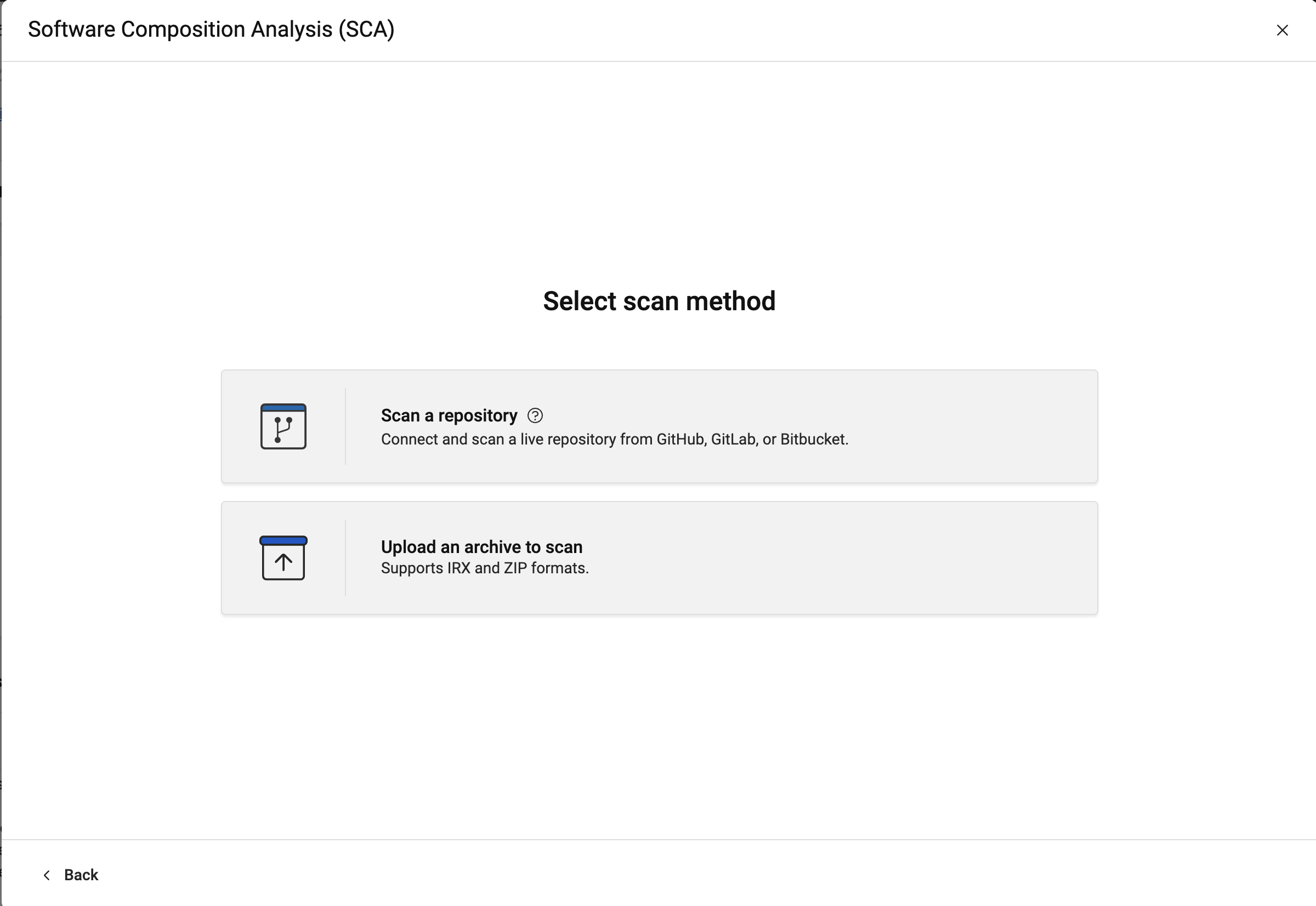
- Choose Scan a respository to scan a GitHub, GitLab, or Bitbucket repository.
- Choose Upload an archive to scan to scan an IRX or ZIP file.